1. Introduction
This document provides installation instructions for OpenText™ Web Experience Management Motion version 2.6.
WEM Motion is a web application designed to simplify content migration. A WEM Motion connector is a web application used to allow WEM Motion to connect with your WEM or Vignette Content Management (VCM) environment.
You must first install WEM Motion Engine, which is a web application designed to simplify content migration between different systems. You must then install one or more Motion connectors.
2. Quick Start
This chapter describes the quickest way to get a Motion Engine and Connector up and running. This is useful if you want to try out WEM Motion without configuring a production-ready system.
To install and run Motion Engine using the default H2 embedded database:
-
Extract the
motion-engine.zipfile to the directory of your choice.
At the command prompt enter the following command:
java -Xmx512M -XX:MaxPermSize=128M -jar motion-engine.warWEM Motion Engine is now available at port 8080. You can access it by entering the following URL in a browser:
To install and run Motion Connector:
-
Extract the
motion-wem-connector.zipfile to a directory on the WEM host. -
Locate and open the
config/application.ymlfile in an editor. -
Update the WEM parameters:
motion: wem: host: somehost (1) port: 27110 (2) install-dir: /opt/OpenText/WEM/Content/10_5 (3)-
<1>
host: the hostname of the target WEM system -
<2>
port: where WEM is listening -
<3>
install-dirThe WEM installation directory. This is where the Connector will look for its dependencies.Caution
This directory must end with the WEM version folder name (for example
/opt/OpenText/WEM/Content/10_5)
-
-
At the command prompt enter the following command:
java -Xmx512M -XX:MaxPermSize=128M -jar motion-wem-connector.war -
Motion Connector is now available at port 9090. You can access it by entering the following URL in a browser:
http://<WEM host>:9090/health
|
Note: Motion Connector has a basic authentication mechanism that delegates to WEM.To sign in, use a valid WEM username / password. |
To configure a connector in Motion Engine:
-
Access the Motion Engine application:
http://<{engine} host>:8080/ -
Click the
Connectorstab, and thenNew Connector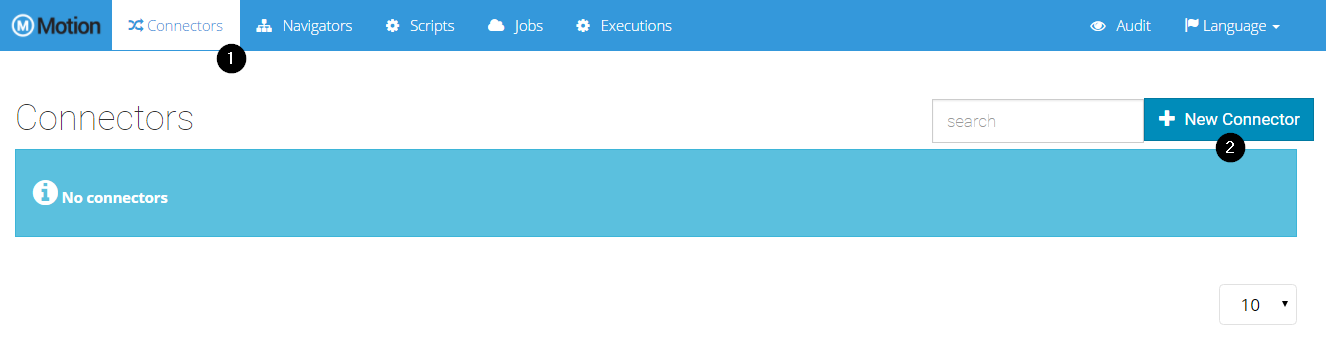
-
Enter values in the following fields:
Name
WEM Connector
Connection Type
Remote
Service URL
http://<WEM host>:9090/Username
<valid WEM username>Password
<WEM username password>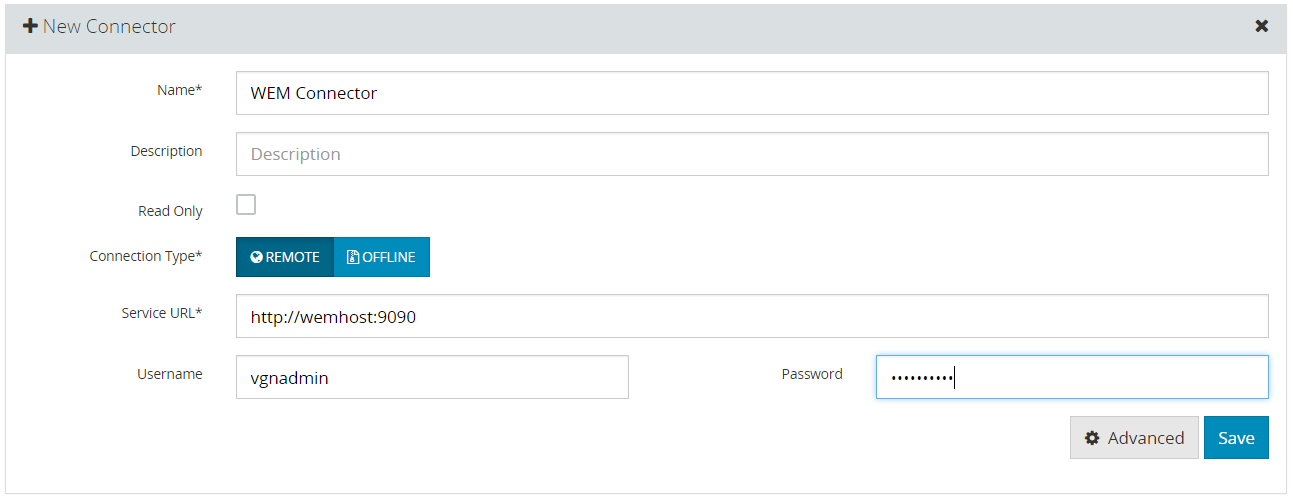
-
Click
Saveto finish the configuration. -
When the configuration is complete, click
Refreshto check the connector health and metadata. A green dot appears at the top-right corner of the connector indicating it is up and running.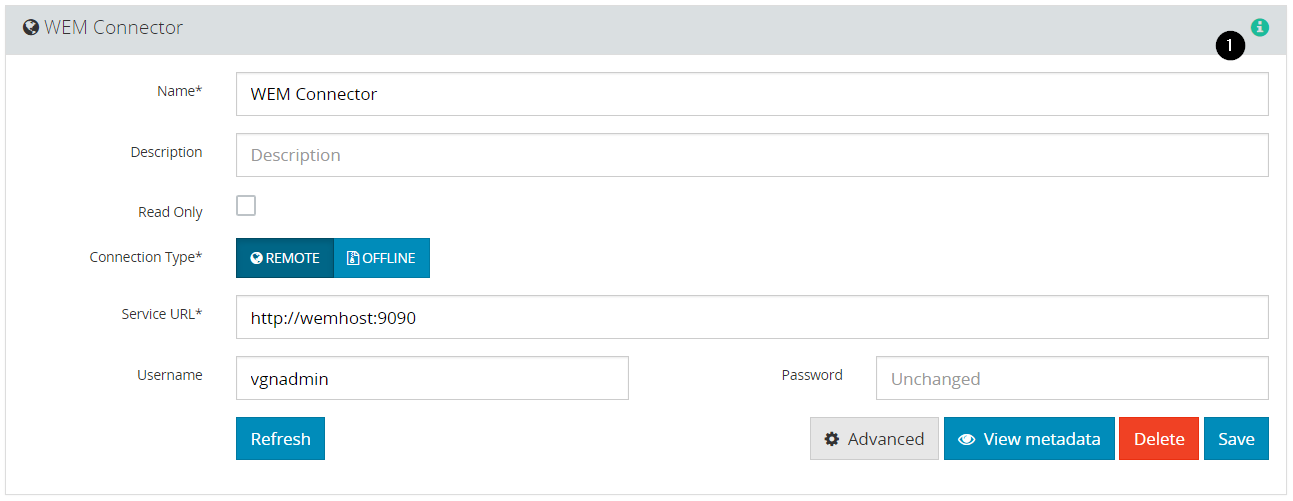
To test the connector:
-
Click the
Navigatorstab, and then expandProject Navigator. -
Click the
Testtab, and then selectWEM Connectorfrom the dropdown list. -
Navigate through the project structure.
-
Click an item to view its properties in the
Infotab. -
Click the
Datatab to view the data XML.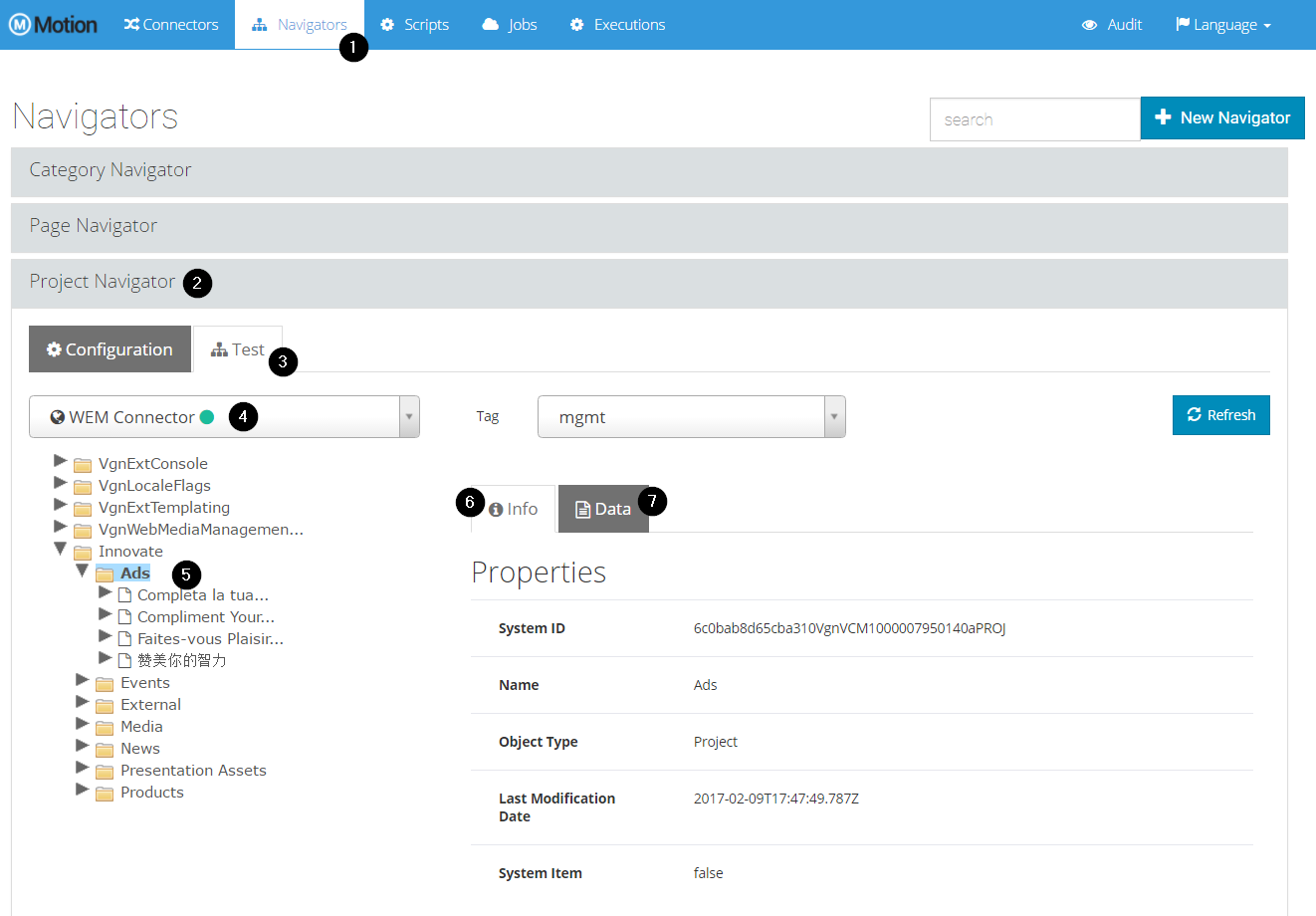
-
2.1. Next Steps
WEM Motion requires a valid license to access Jobs and Job Executions sections.
Consult the License chapter on page 13 to request a new license.
Follow the Quick Start section of the OpenText™ Web Experience Management Motion User Guide for an example of how to use WEM Motion.
Part 1 - WEM Motion Engine
3. Motion Engine Architecture
The following diagram shows the generic architecture of Motion:

The main components of this tool are the Motion Connectors and the Motion Engine.
3.1. Connector
Motion Connectors act as a bridge to access or write content to different repositories. One connector is required for each environment where content is located.
See Installation Scenarios on page 23 for more information about Motion Connector installation scenarios.
3.2. Engine
Motion Engine is responsible for the computation of all items to migrate, and coordinates migration operations through a user interface.
4. WEM Motion Engine Installation
This chapter describes how to install WEM Motion Engine on an application server or as a stand-alone application.
4.1. Preparing for Installation
|
Note:
|
To make installing and uninstalling easier, the environment variable $MOTION_ENGINE_HOME can point to an existing directory using the fully qualified path.
To install the Motion Engine:
-
Extract the
motion-engine.zipfile to a directory of your choice. This directory will be referred to as$MOTION_ENGINE_HOME. -
Rename file
$MOTION_ENGINE_HOME/config/application.yml.sampleto$MOTION_ENGINE_HOME/config/application.yml
The following table illustrates the system properties used by Motion Engine.
|
Note:
|
| Property | Description | Default Value |
|---|---|---|
|
Directory where the Motion Engine is installed |
Current working directory |
|
The Motion Engine base directory. It normally has the following structure:
|
Value of |
|
Directory where temporary files are created |
|
4.1.1. System Requirements
The minimum requirements for the Motion Engine are:
| Hard-Drive |
Minimum 500 megabytes free disk space are required to run the Motion Engine. This is enough space to extract the ZIP file and to write log files. This amount does not take into consideration the space needed for the database. |
| Memory |
Two (2) gigabytes of Java heap space is enough for WEM Motion to handle migrations of approximately 1 million items. |
4.2. Database Configuration
By default the Motion Engine uses an H2 database but an Oracle, SQL Server or PostgreSQL database is recommended.
4.2.1. Oracle
The minimum supported Oracle version is 10g (Express Edition or Standard Edition). You must update the config/application.yml file as follows:
spring:
  datasource:
    driver-class-name: oracle.jdbc.driver.OracleDriver
    url: jdbc:oracle:thin:@dbhost:1521:orcl
    username: MOTION
    password: SomePassword
  jpa:
    database-platform: org.hibernate.dialect.Oracle10gDialect
    database: ORACLE
    hibernate:
use-new-id-generator-mappings: true|
Note: In case you do not want the database password to be visible in the configuration file, you can pass it as an environment variable ( You do not need to change the |
4.2.2. SQL Server
The minimum supported SQL Server version is SQL Server 2005. You must update the config/application.yml file as follows:
spring:
  datasource:
    driver-class-name: com.microsoft.sqlserver.jdbc.SQLServerDriver
    url: jdbc:sqlserver://dbhost\MSSQLSERVER2012;databaseName=motion
    username: MOTION
    password: SomePassword
  jpa:
    database-platform: org.hibernate.dialect.SQLServer2012Dialect
    database: SQL_SERVER
    hibernate:
use-new-id-generator-mappings: false|
Note: Depending on your SQL Server version, you should also configure the proper
|
4.2.3. PostgreSQL
The minimum supported PostgreSQL version is PostgreSQL 9.4.7. To use PostgreSQL as the Engine database you must update config/application.yml as follows:
spring:
  datasource:
    driver-class-name: org.postgresql.Driver
    url: jdbc:postgresql://dbhost:5432/dbname
    username: MOTION
    password: SomePassword
  jpa:
    database-platform: com.vilt.motion2.engine.dialect.CustomPostgreSQL94Dialect
    database: POSTGRESQL
4.2.4. Manual installation
WEM Motion will check the database it points to and will create all necessary tables for it to run automatically. However, if the database user does not have permissions for table or indexes creation, you must run the necessary scripts manually:
-
Before proceeding, ensure liquibase is disabled by editing
config/application.ymlas follows:liquibase: enabled: false -
Access the same database that is configured for Motion Engine and run the proper script under Motion Engine installation folder:
-
sql/mssql.sqlfor Microsoft SQL Server -
sql/oracle.sqlfor Oracle -
sql/postgres.sqlfor PostgreSQL
-
-
Start Motion Engine
4.3. Stand-alone Installation
The quickest way to start using Motion Engine is to launch it as a stand-alone application. To install the engine on Tomcat instead, refer to Tomcat Installation on page 11.
To specify the port where it will run, change the server.port property in $MOTION_ENGINE_BASE/config/application.yml as follows:
server:
  port: 8080
To start the Motion Engine:
cd $MOTION_ENGINE_BASE
# Starts Motion Engine with 512M of heap size and 128M of PermGen space
java -Xmx512M -XX:MaxPermSize=128M -jar motion-engine.war
To specify a different base directory:
cd $MOTION_ENGINE_BASE
# Start Motion Engine with an alternative base directory
java -Dmotion.engine.base=/opt/alternative-engine-base -jar motion-engine.war
You can also change other properties like logging levels:
cd $MOTION_ENGINE_BASE
# Set logging level for com.vilt.motion2 package to TRACE
java -Dlogging.level.com.vilt.motion2=TRACE -jar motion-engine.war|
Note: Options passed through the java command will override options defined in |
If the default Motion Engine configuration is used it is at http://<hostname>:8080/ after you start it.
4.4. Tomcat Installation
You can install the Motion Engine on a Tomcat server like a normal web application.
-
Ensure Tomcat is properly installed in
$CATALINA_HOME -
Create a context file
motion-engine.xmlin$CATALINA_HOME/conf/<enginename>/<hostname>/with the following contents:<?xml version="1.0" encoding="UTF-8"?> <Context displayName="motion-engine" docBase="${motion.engine.home}/motion-engine.war" reloadable="true"> </Context>Note:
The context pathmotion-enginein the above example can be changed to any other valid context path. Ensure that the configuration file is named with the (pretended) context path (notmotion-engine.xml) and that thepathattribute reflects that context path. -
Add the
motion.engine.baseproperty to yourJAVA_OPTS-
On Unixes, edit or create
$CATALINA_HOME/bin/setenv.shand add:JAVA_OPTS="-Dmotion.engine.home=$MOTION_ENGINE_HOME -Xmx2048M -XX:MaxPermSize=128M" -
On Windows, edit or Create
$CATALINA_HOME/bin/setenv.batand add:set JAVA_OPTS="-Dmotion.engine.home=$MOTION_ENGINE_HOME -Xmx2048M -XX:MaxPermSize=128M"Note:
If Tomcat is configured as Windows Service, see the respective Tomcat documentation:
-
|
Note:
Options passed through the JAVA_OPTS variable will override options defined in $MOTION_ENGINE_BASE/config/application.yml
|
If the default Motion Engine configuration is used, it is ready to use and available at http://<hostname>:8080/motion-engine after Tomcat is running.
5. Auditing
WEM Motion Engine supports auditing / tracing. That means that a OpenText™ WEM Motion Engine user will be able to know what, when a who changed any of the entities, like a Job, for instance.
Besides, when executing a Job, OpenText™ WEM Motion Engine can keep track of the time a content was migrated (Auditing), or even store the actual data, both exported and transformed (Traceability).
5.1. Job Execution Items Auditing / Tracing
Currently, only Job Execution items from Migration Jobs can be auditable / traceable from OpenText™ WEM Motion Engine UI.
No configuration is required in the installation to enable this feature.
Besides, Job Execution Items auditing / tracing can be deactivated per job. For more information, see the OpenText™ WEM Motion Engine User Guide.
|
By default, auditing / tracing data for Job Execution Items will be saved in the default database schema / catalog. However, the database schema / catalog for auditing data can be changed, as explained in Configuration. |
5.2. User changes Tracing
The following entities are considered User changes:
-
Connectors
-
Navigators
-
Scripts
-
Jobs
This way, it is possible to know:
-
what was changed
-
when was it changed
-
who did the changes
This tracing feature requires configuration to become enabled.
5.3. Configuration
To enable User changes Tracing, it’s necessary to activate the envers spring profile:
  spring:
    profiles:
active: wem, envers (1)| 1 | Append envers to spring.profiles.active property, separating it from other values with comma (,) |
By default, database tables for auditing / tracing will be created in the same schema as WEM Motion Engine tables.
However, it is possible to specify a different database schema / catalog:
motion:
  engine:
    audit:
      schema: audit (1)
catalog: (2)| 1 | Auditing / Tracing database schema name (Optional) |
| 2 | Auditing / Tracing database Catalog name (Optional) |
6. After Installing the WEM Motion
The Motion Engine allows modifying the configurations in the config/application.yml file as follows:
motion:
  engine:
    execution:
      cleanup-time-in-days: 15 (1)
    connector:
      refresh-time-in-minutes: 10 (2)
    text-encryptor:
password: SomePassword (3)| 1 | Job Executions can clutter the interface and make it hard to get to what actually matters. This option sets the cleanup of failed jobs interval every 15 days, by default. |
| 2 | Connector metadata is refreshed automatically every 10 minutes but you can configure this interval by changing the refresh-time-in-minutes property. |
| 3 | The text-encryptor option allows user to obfuscate sensitive information in the configuration. |
|
Note:
|
6.1. License
This section describes the procedure to gather all the information required to produce a valid license and how to setup your installation with a license.
WEM Motion allows you to configure Connectors and use Navigators without a license but if you try to access the Jobs or Executions section without a valid license, you will see an error page as show in the next section.
6.1.1. To Obtain a Valid License
In order to obtain a valid Motion Engine license you will need the following information:
-
engine
-
hostname
-
-
connectors
-
hostname
-
port
-
tags
-
WEM Motion provides the license configuration for its current setup to help set up the license. To see the configuration, follow these steps:
-
Create and configure all required connectors.
-
Navigate to either the Job or the Executions tab. A page with the necessary information to generate your license should appear. If the license is missing or invalid, the following page will appear:
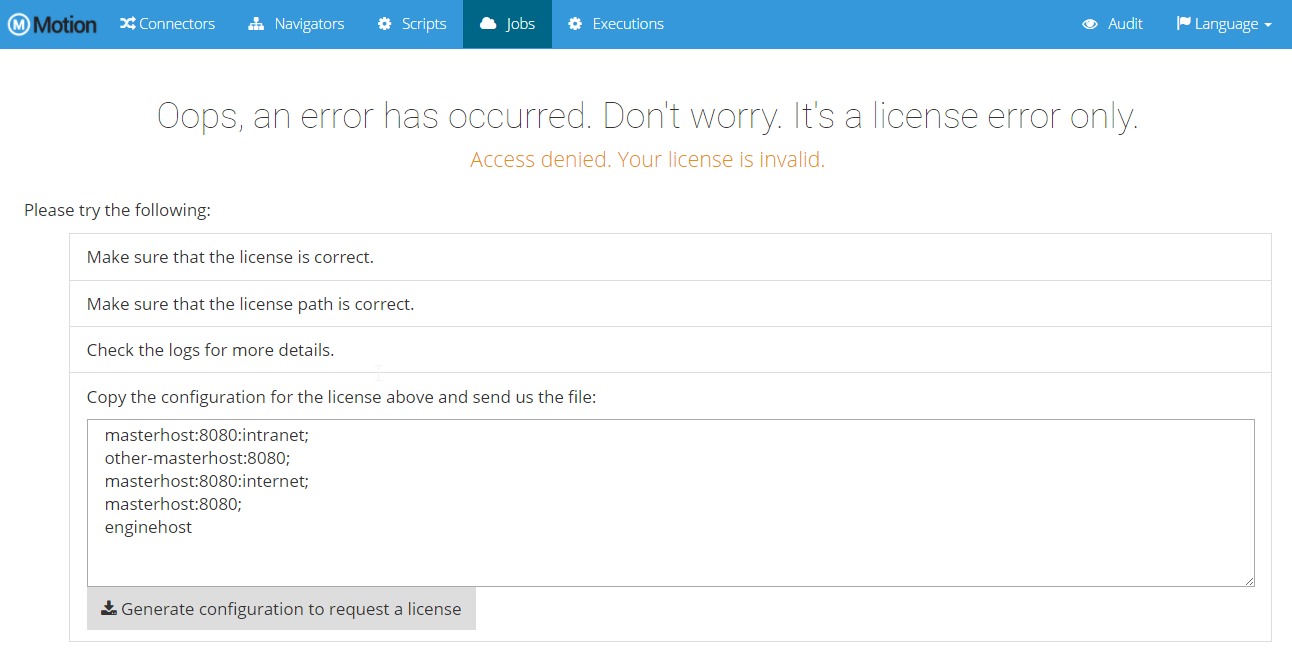 Figure 1. Missing license page
 -
Download or copy the configuration information to a file
-
Name and save the text file, then request a license file from VILT Support by emailing product.support@vilt-group.com. Include your customer name and the text file as an attachment.
|
Note:
Offline Connectors are no longer relevant to configure a license. |
To configure the Wem Motion license:
When you have a valid license, add its contents to the $MOTION_ENGINE_BASE/license/key.license file and restart the Motion Engine.
Once running you should be able to access the Jobs and Executions tabs normally.
6.2. Logs
By default the Motion Engine writes logs to the $MOTION_ENGINE_BASE/logs/motion-engine.log file.
You can easily change the following properties in your application.yml file to tweak the logs:
| Property | Description | Default Value |
|---|---|---|
|
Path to the log file. |
|
|
Default logging level for all classes |
|
|
You can also specify log level for specific packages by replacing fullyqualifiedname with the full class name. For example: com.vilt.motion2 |
|
For example, the config/application.yml file can be updated as follows:
logging:
  file: /var/log/motion2/motion-engine.log
  level:
    root: WARN (1)
com.vilt.motion2: DEBUG (1)| 1 | Add or remove keys to suit your needs |
|
Note:
The properties logging.level.root and logging.level.fullyqualifiedname can be set with one of the following values: ERROR, WARN, INFO, DEBUG or TRACE. See the following example for reference:
|
You can also toggle console logging by adding or removing the spring profile log-console. For instance, you can add the following configuration in the config/application.yml file as follows:
spring:
  profiles:
    active: log-console
6.3. Authentication
This section describes how to configure the different types of authentication supported by WEM Motion.
|
Important By default, the Motion Engine does not require authentication. |
6.3.1. In-Memory
The simplest form of authentication the Motion Engine supports is in-memory authentication.
This provides a quick way to setup a simple authentication mechanism through a simple configuration. Update the config/application.yml file as follows:
security:
  user:
    name: motion
    password: SomePassword
  basic:
    enabled: true
6.3.2. LDAP or OTDS
WEM Motion can use the embedded LDAP server in your WEM installation to enforce user authentication.
You can find your WEM LDAP configuration properties through WEM’s Configuration Console by navigating to Configuration Console > Subcomponents > Authorization.
The LDAP_PROPERTIES variable is of particular interest because it contains all the information necessary to include on config/application.yml.
|
Important: When copying configuration from WEM, remove all occurences of |
The following config/application.yml contains an example that uses the WEM embedded LDAP:
security:
  ldap:
    url: ldap://wemhost:27001 (1)
    manager-dn: uid=vgnadmin,ou=people,ou=VgnLDAPRealm,dc=vgndomain (2)
    manager-password: SomePassword (3)
    user-search-base: ou=people,ou=VgnLDAPRealm,dc=vgndomain (4)
    group-search-base: ou=groups,ou=VgnLDAPRealm,dc=vgndomain (5)
    user-search-filter: (&(uid={0})(objectclass=inetOrgPerson)) (6)
group-search-filter: (&(cn={0})(objectclass=groupOfUniqueNames)) (7)| 1 | The WEM LDAP hostname and port. |
| 2 | The username to use when binding to LDAP. |
| 3 | The password of the binding user. |
| 4 | The user.dn.1 property from WEM’s LDAP_PROPERTIES. All \ are removed. |
| 5 | The group.dn.1 property from WEM’s LDAP_PROPERTIES. All \ are removed. |
| 6 | The user.filter.1 property from WEM’s LDAP_PROPERTIES. All \ are removed, and %u is replaced with {0}. |
| 7 | The group.filter.1 property from WEM’s LDAP_PROPERTIES. All \ are removed, and %g is replaced with {0}. |
It is also possible to connect to a standalone LDAP or OpenText™ Directory Services (OTDS) server to use different methods to query for users. For example you can edit the config/application.yml as follows:
security:
  ldap:
    url: ldap://otdshost:389
    manager-dn: cn=Directory Manager
    manager-password: SomePassword
    user-dn-pattern: cn={0},ou=IdentityProviders,dc=identity,dc=opentext,dc=net
    user-search-base: ou=IdentityProviders,dc=identity,dc=opentext,dc=net
user-search-filter: (objectClass=oTPerson)|
Note:
|
|
Important
|
6.4. E-mail
You can configure e-mail reports for Motion Engine jobs allowing computation and migration status to be sent by e-mail, which is specially useful for large jobs.
Before defining the e-mail recipients on the job configuration, you need to configure your e-mail server.
To configure e-mail reports:
-
Gather the following properties:
-
Hostname — The email server hostname
-
Port — The email server port number
-
Username
-
Password
-
From — The e-mail field
from
-
-
Update the
$MOTION_ENGINE_BASE/config/application.ymlfile as follows:
spring:
  mail:
    protocol: smtp
    host: mail.example.com
    port: 25
    user: SomeUser
    password: SomePassword
    tls: false
    auth: false
    from: motion@example.com
7. Upgrading WEM Motion Engine
This chapter describes how to upgrade WEM Motion Engine from previous 2.x versions.
|
Important Before proceeding with upgrade, it is recommended to backup both the WEM Motion Engine file system an the WEM Motion Engine database! |
7.1. Performing the upgrade
The upgrade process is essentially the same for Stand-alone and Tomcat installations.
Here it is assumed that WEM Motion Engine already installed to $MOTION_ENGINE_HOME.
|
Note:
When upgrading it is recommend to backup config/application.yml and license/key.license.
|
Follow these steps to upgrade WEM Motion Engine:
-
Stop WEM Motion Engine.
-
Unpack
motion-engine.zipto a temporary folder. -
Unpack
motion-engine.zipover the$MOTION_ENGINE_HOME. Verify that the structure of$MOTION_ENGINE_HOMEhas the following:├── config │ ├── application.yml ├── license │ ├── key.license └── motion-engine.war -
Start WEM Motion Engine.
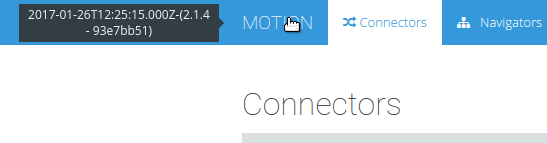
You can verify that the new version is installed by navigating to WEM Motion Engine and hover the cursor over the WEM Motion logo on the top left side:
8. Troubleshooting WEM Motion Engine
This chapter discusses the most common problems encountered with the Motion Engine.
Cannot start engine
-
Check that the Motion Engine database is running and reachable from the Motion Engine host.
-
If in standalone, check if there is another service listening on the same port of the Motion Engine.
-
If in application server, check that the Tomcat
setenv.sh/batfile defines themotion.engine.homeproperty correctly.
Cannot connect to a remote connector
-
Check that you reach the affected connector host from the Motion Engine host. If not, change your network settings.
-
Check if your Service URL matches the following pattern:
http://<host>:<port>[/webapp-path]/
If your connector is deployed on an application server
/webapp-pathwith the path to your connector. Ignore it otherwise.
License does not work
-
Changes in your connector configuration (tags, host or port) will invalidate your license. You will need to generate a new configuration and request a new license or revert the changes.
Sign in always fails
-
If using LDAP, check if the
security.ldap.*properties in theapplication.ymlfile are correct. -
If using In-Memory, check if the credentials match those configured with
security.user.nameandsecurity.user.passwordin theapplication.ymlfile.Note:
If you have whitespaces in these values, the values must reside inside single(') or double quotes (").
Sign in form does not appear
-
If using In-Memory, check if the property
security.basic.enabledis set totruein yourapplication.ymlfile.
|
Note:
|
9. Uninstalling WEM Motion Engine
Before removing the Motion Engine, read all of sections in this chapter.
9.1. Remove Offline Connectors
Offline connectors are stored separately in a location defined by the user when configuring the connector. The best way to remove them is check each configured Offline Connector directory path and remove it manually.
|
Note:
The easiest way to check this directory is through the Motion Engine engine web application. |
9.2. Remove Application Server Files
If you installed the Motion Engine as a web appplication on a Tomcat application server, you must remove the following:
-
$CATALINA_BASE/conf/Catalina/[hostname]/motion-engine.xmlcontext file -
motion.engine.homeproperty from yourJAVA_OPTSthat might no longer make sense from yoursetenv.sh/bat.
9.3. Remove Databases
If you are using the embedded H2 database you should remove the database <work-dir>/.motion directory.
|
Note:
|
If you are using Oracle, SQL Server or PostgreSQL you must drop the database manually.
9.4. Remove Installation Files
|
Note:
Before proceeding ensure you have shut down the Motion Engine. |
After everything else is removed, remove the Motion Engine install files deleting the $MOTION_ENGINE_HOME directory.
Part 2 - WEM Motion Connector
10. Motion Connector Architecture
10.1. WEM Motion Connector Tags
WEM Motion, as a generic migration tool, is not aware of the concept of a stage or CDS. Instead, Motion connectors provide tags, which are a more generic concept. In a Motion Connector, tags represent stages or CDS instances.
Therefore, Motion connectors always provide a default tag mgmt that corresponds to the CMA.
This tag can be used for read/write operations, and uses the WEM API to retrieve and persist items in WEM.
That means that writing content PrePersistence and PostPersistence event listeners.
A Motion Connector can also provide additional tags corresponding to delivery stages or CDS instances.
These tags can then be used to retrieve delivery data instead of the mgmt data.
This is particularly useful when there are requirements to ensure that the migrated data is that which is actually published, and not the data that found in mgmt stage (which can be unapproved or stale).
There is a special tag that can be created on the fly by the WEM Motion Connector: the <stage name>-deleted tag contains a list of all contents deleted from <stage name>.
10.2. Requirements
10.2.1. mgmt tag
For the mgmt tag, the Motion Connector has the following requirements:
-
T3 access to the WEM CMA must be available. By default, the connector uses port
27110is used to communicate with the WEM CMA. -
JDBC access to WEM database is also mandatory. The Motion Connector obtains the necessary configuration to establish a JDBC connection from WEM CMA.
A Motion Connector installation that has a mgmt tag is considered a Master Connector.
10.2.2. Delivery tags
For delivery tags, the Motion Connector has the following requirements:
-
The WEM CDS configuration file
as.cfgmust be provided. -
Access to the
docrootfolder and to the database used by the corresponding CDS is also mandatory. Bothdocrootfolder and database configurations are obtained from the providedas.cfgfile.
Delivery tags can be part of a Master Connector, if it also includes the mgmt tag, or can be configured in a separated Motion Connector installation.
In those cases, a Delivery-only Motion Connector installation is referred to as a Slave Connector.
10.2.3. Deletion tags
A deletion tag requires that a certain table exists on the database associated with the WEM stage, and a custom WEM listener needs to be deployed and activated.
The sole purpose of deletion tags is to help with synchronizations tasks.
|
Tip:
If you do not need to keep two active environments in synchronization, the Deletion tags are not necessary. |
10.3. Installation scenarios
|
Note:
The primary host is where the WEM CMA ( VgnVCMServer) is installed.
|
10.3.1. Scenario 1: Same Host
This is the simplest scenario.
In this case, you need only a Master Motion Connector installation to access both mgmt stage and Delivery stages.

In this scenario, Delivery stage assets (database and docroot) must be accessible in the primary host.
WEM stores the configuration for the Delivery stage in the as.cfg file, which is read by the Motion Connector. From there, it extracts the JDBC information to connect to the database, as well as the docroot filesystem path.
Regarding the mgmt stage, the Motion Connector connects with CMA through WebLogic T3 protocol.
A Motion Connector also has a basic authentication mechanism which will delegate the provided credentials to the WEM authentication mechanism.
When first trying to access a Motion Connector through the browser or when configuring it in the Motion Engine, you must provide a valid WEM username and password.
A Motion Connector communicates directly with the same database used by WEM CMA. By default, no additional configuration is required for the database, because the Motion Connector will obtain it automatically from WEM.
10.3.2. Scenario 2: CDA on Different Host
In this scenario, the WEM host does not have direct access to the Delivery stage database or docroot.

In those cases, a slave Motion Connector must be installed on a different host that can communicate with both the database and docroot.
As in Scenario 1: Same Host, configuration for both the database and docroot is read from the provided as.cfg file.
When configuring this architecture, you provide only the Master Motion Connector in the WEM Motion Engine. Requests from the Motion Engine for delivery data are forwarded from the Motion Connector to the slave connector. This means that Motion Engine does not need to have direct access to the delivery connector, only the CMA Motion Connector needs to have access.
10.3.3. Scenario 3: CMA and CDA on Different Hosts
This is a more distributed scenario for Motion Connector.

This architecture differs from Scenario 2: CDA on Different Host because there is no installation of a Motion Connector on the primary host.
The Master connector is installed in a different host instead. The Master connector then points to the CMA on a different host by providing the corresponding T3 host and port in its configuration.
Also, the Delivery stage can be handled by a slave connector installation on another host, just like in Scenario 2: CDA on Different Host.
11. Installing WEM Motion Connector
This chapter describes how to install a Motion Connector on an application server, or how to launch it as a standalone application.
11.1. Planning Installation
Before starting the installation of the Motion connectors you should plan your architecture:
-
Identify the WEM source and target environments.
-
Identify which stages or CDSs will be used for data retrieval for all WEM environments.
The installation of the connectors is should be as centralized as possible. If possible, install them on the same machine as the Motion Engine.
However, the following constraints for both source and target connectors must be taken into account:
-
Engine — ensure that Motion Engine can reach all connectors hosts.
-
Connectors — Remote connectors' hostnames and ports are important because the license configuration depends on them.
-
CMA — a Master connector is required for each CMA.
-
CDS — it is possible to configure each CDS in the Master connector. If the Master connector cannot access the document root or the database of the corresponding CDS, you must setup a slave connector.
-
11.2. Preparing for Installation
The procedure below uses the variable name $MOTION_CONNECTOR_BASE to refer the base directory where most relative paths are resolved.
If you have not configured multiple instances of Motion Connector, then $MOTION_CONNECTOR_BASE will have the value of $MOTION_CONNECTOR_HOME, the directory where you will install the Motion Connector.
To install Motion Connector:
-
Extract the
motion-wem-connector.zipfile to a directory of your choice. This directory will be referred to as$MOTION_CONNECTOR_HOME. -
Rename file
$MOTION_CONNECTOR_HOME/config/application.yml.sampleto$MOTION_CONNECTOR_HOME/config/application.yml -
Edit
$MOTION_CONNECTOR_BASE/config/application.ymlwith your WEM installation details:motion: wem: host: somehost (1) port: 27110 (2) install-dir: /opt/Opentext/WEM/Content/10_5 (3) config-id: /vcm-vgninst/cdsvcs/stage-mgmt/cds-mgmt/as (4) config-id: /vcm-vgninst/cdsvcs/stage-mgmt/cds-mgmt/as (4) working-dir: ${motion.install.dir}/../../vcm/inst-vgninst (5)1 The hostname of the WEM system that the Connector will target 2 The port where WEM is listening 3 The WEM installation directory. This is where the connector will look for its dependencies. This directory must end with the WEM version folder name (for example /opt/OpenText/WEM/Content/10_5)4 The configuration ID for mgmtstage5 The WEM working directory
|
Important
For Motion to handle content instances with custom java classes all custom jars must be accessible. From WEM 16.2 the deployedExtns/ctsvcsext folder, where all custom jars deployed with configp were copied to, has been deprecated.
These files are now stored in ${wem.working.dir}/deployedExts/ctsvcsext so the aforementioned configuration for the working directory must be defined.
|
11.2.1. Installation on a Different Host
A Motion Connector can also be installed on a different machine (relative to your WEM Installation), but requires additional setup.
|
Note:
You can skip this section if you have your Motion Connector on the same host as WEM. |
First, you need to provide the WEM libraries (pre-configured and custom ones) that the connector depends on.
These files are found under your VCM or WEM installation directory (for instance, C:\Opentext\WEM\Content\10_5)
Jar Dependencies |
VCM / WEM Version |
||||||||
|---|---|---|---|---|---|---|---|---|---|
7.5 |
7.6 |
8.0 |
8.1 |
8.5 |
10.5 |
16.0 |
16.0.1 |
16.2 |
|
|
|
||||||||
|
|
|
|
|
|
|
|||
|
|
|
|
|
|
|
|
||
|
|
|
|
|
|
|
|||
|
|
|
|
|
|
|
|||
|
|
|
|
|
|
|
|
||
|
|
||||||||
|
|||||||||
|
|||||||||
|
|
|
|||||||
|
|
|
|||||||
|
|
|
|
||||||
|
|
|
|
|
|
|
|
|
|
|
|
|
|
|
|
|
|
|
|
|
|
|
|
|
|
|
|
|
|
|
|
|
|
|
|
|
|
|
|
|
|
|
|
|
|
|
|
|
|
|
|
|
|
|
|
|
|
|
|
|
|
|
|
|
|
|
|
|
|
|
|
|
|
|
|
|
|
|
|
|
|
|
|
|
|
|
|
|
|
|
|
||||||||
|
Note:
WEM 16.2 no longer has the deployedExtns/ctsvcsext folder. However, all custom extension jars, that is, all jar files deployed to WEM server with configp, should be copied into deployedExtns/ctsvcsext.
|
To configure Motion Connector in a remote machine:
-
Create a folder in the same machine where Motion Connector is installed
|
Important
The folder must have the same name as WEM installation folder (for example, C:\wem-install-libs\10_5)
|
-
Copy all required jar files for your WEM version into that folder, ensuring that they maintain the same folder structure (for example,
vgn-appsvcs-cma.jarmust be placed underC:\wem-install-libs\10_5\lib\sdk)
|
Important
You should confirm that the WEM runtime services are configured either to listen to the connector host address or to no specific address at all. |
You can proceed normally to either Standalone Application on page 28 or Tomcat Installation on page 29, and finish installing the connector.
11.3. Standalone Application
The quickest way to start using a Motion Connector is to launch it as a standalone application.
If you would rather install Motion Connector in a tomcat refer to Tomcat Installation on page 29.
To specify the port where it will run, change the server.port property in $MOTION_CONNECTOR_BASE/config/application.yml:
server:
  port: 9090
To Start a Motion Connector
You can start a Motion Connector like any standard Java application:
cd <motion.connector.home>
# Starts WEM Connector with 512M of heap size and 128M of PermGen space
java -Xmx512M -XX:MaxPermSize=128M -jar motion-wem-connector.war
You can also specify a different base directory for a Motion Connector (if you want to have the same installation but run two different Motion connectors, for instance):
cd $MOTION_CONNECTOR_HOME
# Starts WEM Connector with 512M of heap size and 128M of PermGen space
java -Xmx512M -XX:MaxPermSize=128M -Dmotion.connector.base=$MOTION_CONNECTOR_BASE -jar motion-wem-connector.war
After the connector is started it is possible to manually check if your connector is setup correctly and running by accessing http://<motion.wem.host>:<motion.wem.port>/connector/metadata through your browser of choice.
|
Note:
A Motion Connector uses basic authentication, therefore you must provide a valid WEM username and password. |
|
Important:
It is highly recommended that Motion Connector is restarted every time WEM is also restarted. |
11.4. Tomcat Installation
A Motion Connector can be installed on a Tomcat application server like a normal web application.
-
Make sure Tomcat is properly installed in
$CATALINA_HOME -
Create a context file
motion-wem-connector.xmlin$CATALINA_HOME/conf/<enginename>/<hostname>/with the following contents:<?xml version="1.0" encoding="UTF-8"?> <Context displayName="motion-wem-connector" path="/motion-wem-connector" docBase="${motion.connector.home}/motion-wem-connector.war" reloadable="true"> </Context>Note:
The name of the context file will define the context path. For example, a file namedtest-connector.xmlwill yield the context path/test-connector. -
Add the
motion.connector.homeproperty to yourJAVA_OPTS-
On UNIX or Linux:
edit or create
$CATALINA_HOME/bin/setenv.shand add the following:JAVA_OPTS="-Dmotion.connector.home=$MOTION_CONNECTOR_HOME -Xmx512M -XX:MaxPermSize=128M" -
On Windows:
edit or create
$CATALINA_HOME/bin/setenv.batand add the following:set JAVA_OPTS="-Dmotion.connector.home=$MOTION_CONNECTOR_HOME -Xmx512M -XX:MaxPermSize=128M"Note:
If Tomcat is configured as Windows Service, see tomcat the respective Tomcat documentation:
-
If the default configuration is used, Motion Connector will be available at http://<hostname>:8080/motion-wem-connector after Tomcat is started.
|
Note:
Motion Connector uses basic authentication, and you must provide a valid WEM username and password. |
11.4.1. URI encoding
By default, Tomcat decodes URIs using ISO-8859-1, and Motion requires UTF-8 instead.
To change URI encoding, edit $CATALINA_HOME/conf/server.xml and change HTTP connector to use URIEncoding="UTF-8":
<Connector
    port="8080"
    protocol="HTTP/1.1"
    connectionTimeout="20000"
    redirectPort="8443"
    URIEncoding="UTF-8" />
11.4.2. Multiple connectors per Tomcat
To configure more than one motion connector in the same Tomcat, it’s necessary to provide a different base directory, which must have at least have a config/application.yml file.
That configuration file can then specify a different WEM installation directory or any other configuration, and that way to different connectors can coexists, each one pointing to a specific WEM.
To specify a different Motion Connector base directory, which by default corresponds to the Motion Connector homme directory, it’s necessary to edit the corresponding tomcat context configuration file under $CATALINA_HOME/conf/<enginename>/<hostname>/ and add a Environment element to the context.
For instance, to configure another connector with context path other-motion-wem-connector, create or edit the file $CATALINA_HOME/conf/<enginename>/<hostname>/other-motion-wem-connector.xml:
+
<?xml version="1.0" encoding="UTF-8"?>
<Context
    displayName="other-motion-wem-connector"
    path="/other-motion-wem-connector"
    docBase="${motion.connector.home}/motion-wem-connector.war"
    reloadable="true">

    <!-- Change this property value to use a different base directory -->
    <Environment
        name="motion.connector.base"
        value="${motion.connector.home}/../other-motion-wem-connector"
        type="java.lang.String" />

</Context>|
Important:
It is highly recommended that Motion Connector is restarted every time WEM is also restarted. |
11.5. CMA and CDS
You can have connectors in one of two modes:
-
Master — Access to CMA and multiple Delivery stages CDS
-
Slave — Access to a single Delivery stage CDS
11.5.1. To obtain the CDS configuration
In the following sections, you must provide the config-file and config-id properties values.
To find these values locate the vgncfg.properties file corresponding to the Delivery stage CDS you are configuring:
-
If the WEM Configuration Console is not already running, open it and sign in as the WEM administrator. For more information about navigating the Configuration Console, see the Configuration Console Help.
-
In the left pane, click the Application Services node for the Delivery stage CDS. For example, if your Delivery stage is called
Internet, and that stage has a CDS calledInternet1, the path would be:Configuration Console > Content > Delivery Services > Content Delivery Stage - Internet > Content Delivery Services - Internet1 > Application Services -
In the right pane, click
WORKING_DIRECTORY. Thevgncfg.propertiesis located in the../confdirectory relative to the value displayed in theRun Valuefield. In other words, if the Run Value is:/opt/Opentext/vcm/inst-vgninst/cfgagent/vcm-vgninst/cdsvcs/stage-Internet/cds-Internet1/as/working
then
vgncfg.propertiesfor this Delivery stage CDS is located in:/opt/Opentext/vcm/inst-vgninst/cfgagent/vcm-vgninst/cdsvcs/stage-Internet/cds-Internet1/as/conf
-
Open the file and copy the
vignette.as.configFileandvignette.as.configIdproperties values toconfig-fileandconfig-id, respectively, when required.
11.5.2. Master Mode
You will always have at least one connector in Master mode and it should have access the WEM installation directory in order to provide the mgmt tag.
You must also configure your deliveries in this connector.
If the master connector has access to the database and document root for your stage CDS, it is possible to configure the CDS directly in the master connector. For any CDS where master connector does not have access to the document root or database, you must also configure a slave connector in order to access their content.
The following configuration applies to master connector which targets a WEM instance and its Internet stage. Update the config/application.yml file as follows:
motion:
  wem:
    host: somehost
    port: 27110
    install-dir: /opt/Opentext/WEM/Content/10_5
    config-id: /vcm-vgninst/cdsvcs/stage-mgmt/cds-mgmt/as
  connector:
    deliveries:
      internet: (1)
        display-name: Internet (2)
        config-file: /opt/Opentext/vcm/inst-vgninst/cfgagent/vcm-vgninst/cdsvcs/stage-Internet/cds-Internet1/as/conf/as.cfg (3)
config-id: /vcm-vgninst/cdsvcs/stage-Internet/cds-Internet1/as (4)| 1 | The tag identifier |
| 2 | The tag display name |
| 3 | The as.cfg file location |
| 4 | The configuration key in the WEM Configuration Console |
|
Important
The Master connector must have access to paths specified in config-file properties.
|
11.5.3. Slave Mode
Use the Slave mode when the master connector does not have access to a Delivery document root or database. A slave connector will provide a master connector to the a single stage CDS.
First configure your slave connector in the <cda>/config/application.yml file as follows:
motion:
  wem:
    install-dir: /opt/Opentext/WEM/Content/10_5
    config-file: /opt/Opentext/WEM/vcm/inst-vgninst/cfgagent/vcm-vgninst/cdsvcs/stage-Internet/cds-Internet1/as/conf/as.cfg (1)
config-id: /vcm-vgninst/cdsvcs/stage-Internet/cds-Internet1/as (2)| 1 | The as.cfg file location |
| 2 | The configuration ID in the WEM config Configuration Console |
|
Important
The Slave connector must have access to the path specified in config-file property.
|
This connector does not need to know the WEM host or port because a slave connector will only need access primarily to the config-file and config-id in order to connect to the CDS database and document root.
After configuring your slave connector configure your master connector in the <cma>/config/application.yml file as follows:
motion:
  wem:
    host: somehost
    port: 27110
    install-dir: /opt/Opentext/WEM/Content/10_5
    config-id: /vcm-vgninst/cdsvcs/stage-mgmt/cds-mgmt/as
  connector:
    deliveries:
      internet:
        display-name: Internet
        remote:
          url: http://slaveConnectorHost:9090
11.6. Deletion tags
The configuration for Deletion tags is done on the WEM side. The outline of this configuration for a management stage is:
-
Create a table on the WEM management database
-
Install and activate a custom WEM listener for the management stage
11.6.1. Database Configuration
To keep track of what contents are deleted from WEM you need to create a table on the WEM database. This table will have the information about the deleted contents so that they can be used by WEM Motion.
- Oracle
CREATE TABLE MOTION_DELETED (
  systemid       VARCHAR2(80) NOT NULL,
  name           VARCHAR2(512),
  objecttypename VARCHAR2(255),
  deletiontime   TIMESTAMP    NOT NULL
);

CREATE INDEX MOTION_DELETED_SYSTEMID_IDX ON MOTION_DELETED(systemid);

CREATE INDEX MOTION_DELETED_DELTIME_IDX ON MOTION_DELETED(deletiontime);- SQL Server
CREATE TABLE MOTION_DELETED (
  systemid       NVARCHAR(80) NOT NULL,
  name           NVARCHAR(512),
  objecttypename NVARCHAR(255),
  deletiontime   DATETIME     NOT NULL
)
GO

CREATE INDEX MOTION_DELETED_SYSTEMID_IDX ON MOTION_DELETED(systemid)
GO

CREATE INDEX MOTION_DELETED_DELTIME_IDX ON MOTION_DELETED(deletiontime)
GO- PostgreSQL
CREATE TABLE motion_deleted (
  systemid       VARCHAR(80) NOT NULL,
  name           VARCHAR(512),
  objecttypename VARCHAR(255),
  deletiontime   TIMESTAMP WITHOUT TIME ZONE NOT NULL
);

CREATE INDEX motion_deleted_systemid_idx ON motion_deleted(systemid);

CREATE INDEX motion_deleted_deltime_idx ON motion_deleted(deletiontime);|
Tip:
If a Connector is already running, it has to be restarted! |
Now the Connector will contain the tag mgmt-deleted for every management stage where the MOTION_DELETED table was created.
You can verify that the tag name was created by opening the Connector metadata on WEM Motion Engine.
11.6.2. Install and activate the WEM Motion Listener
To install the WEM Motion Listener you need to register the jar file as a Product Extension.
The jar file is found on the WEM Motion Connector installation package under listeners/ot-wem-connector-listener.jar
Having deployed the jar, you need to activate the listener.
-
In the left pane of the Configuration Console, click on the Events node for the Management Stage.
Configuration Console > Content > Delivery Services > Content Management Stage > Content Delivery Services - mgmt > Application Services > Events -
For the following events, copy the contents from Run Value to Config Value and append it the Motion Listener class name
com.vilt.motion2.connector.listeners.MotionListener.-
CMSObject.PostDelete -
PostPersistence.Delete
-
-
Push or Commit the changes and restart the configuration agent(s).
11.6.3. Change the deletion table name
It is possible to change the deletion table name. For that, change the SQL statements above to reflect the desired table name.
In that case, it is necessary to create a configuration resource to let WEM Motion Listener know the table name.
-
In the left pane of the Configuration Console, right-click on the Resources node for the Management Stage.
Configuration Console > Content > Delivery Services > Content Management Stage > Content Delivery Services - mgmt > Resources -
Select the Add Resource option
-
Select Generic Resource
-
Fill Resource Name with Motion Resource
-
Select Other(Any stage-specific resource subtype information) for resource type
-
Fill Resource Subtype with Properties
-
Fill Non-Encrypted Data with the following data (replace
MY_DELETION_TABLEwith your name of choice):motion.deletion-table = MY_DELETION_TABLE -
Click Finish
Finally, WEM Motion Connector deletion table name must be configured by editing $MOTION_CONNECTOR_BASE/config/application.yml and adding the following lines (replace MY_DELETION_TABLE with your name of choice):
motion:
  connector:
    deleted-table-name: MY_DELETION_TABLE
12. Upgrading WEM Motion Connector
This chapter describes how to upgrade WEM Motion Connector from previous 2.x versions.
|
Important Before proceeding with upgrade, it is recommended to backup both the WEM Motion Connector file system configurations! |
12.1. Performing the upgrade
On older versions the JARs on $MOTION_CONNECTOR_HOME/ are suffixed with the WEM Motion version number.
For these versions, it is necessary to remove these JARs because on newer versions they do not contain the version suffix.
|
Note:
When upgrading it is recommended to backup config/application.yml.
|
The upgrade process is as follows:
-
Stop WEM Motion Connector.
-
If JARs on
$MOTION_CONNECTOR_HOMEhave version suffix:-
Rename or remove the affected JARs. If you rename, it is important to not use the
.jarfile extension. JAR files are under the following directories:-
$MOTION_CONNECTOR_HOME/libs/ -
$MOTION_CONNECTOR_HOME/patches/ -
$MOTION_CONNECTOR_HOME/patches/vcm75/
-
-
-
Unpack
ot-wem-connector.zipover the$MOTION_CONNECTOR_HOME. Verify that the structure of$MOTION_CONNECTOR_HOMEcontains the following:├── config │ └── application.yml ├── libs │ ├── ot-wem-connector-service.jar │ ├── (..) │ └── (More JARs) ├── motion-wem-connector.war ├── patches │ ├── ot-wem-patches.jar │ └── vcm75 │ └── ot-wem-patches-vcm75.jar └── thirdparty ├── hikari │ └── HikariCP-java6.jar ├── jta │ └── jta.jar └── weblogic ├── 10 │ └── wlthint3client.jar └── 12 └── wlthint3client.jar -
Start WEM Motion Connector.
13. WEM Tuning
This chapter presents some techniques that can be applied on source and target WEM in order to improve WEM Motion execution speed.
|
Tip:
|
13.1. WEM Database Indexes
WEM Motion will perform a lot of SQL queries to the WEM database. Creating database indexes can greatly improve the WEM Motion import rate when running migrations.
For either Oracle, SQL Server or PostgreSQL databases, create the following indexes:
CREATE INDEX MOTION_IDX_MD_OBJECTTYPEID ON vgnAsMoMetaData (contentMgmtId ASC, objectTypeId ASC);
CREATE INDEX MOTION_IDX_MD_LOCALE ON vgnAsMoMetaData (contentMgmtId, locale);
CREATE INDEX MOTION_IDX_SF_PATH ON vgnAsStaticFileRef (placementPath);
CREATE INDEX MOTION_IDX_MM_ATTRDEF2 ON vgnAsMoMap (attributeDefinition2);
CREATE INDEX MOTION_IDX_MM_KEYSTRING1 ON vgnAsMoMap (attributeDefinition1, keyString1);
CREATE INDEX MOTION_IDX_MM_KEYSTRING2 ON vgnAsMoMap (attributeDefinition2, keyString2);
CREATE INDEX MOTION_IDX_MM_KEYINT1 ON vgnAsMoMap (attributeDefinition1, keyInt1);
CREATE INDEX MOTION_IDX_MM_KEYINT2 ON vgnAsMoMap (attributeDefinition2, keyInt2);
CREATE INDEX MOTION_IDX_SM_STAGE_ORDER ON vgnStageManifest (stageId, jobOrder);
13.2. SQL Server
For WEM installations using SQL Server, ensure that the READ_COMMITTED_SNAPSHOT and ALLOW_SNAPSHOT_ISOLATION properties are enabled.
If they are disabled, run the following commands to enable them and improve the database transaction performance:
ALTER DATABASE <database name> SET READ_COMMITTED_SNAPSHOT ON;
ALTER DATABASE <database name> SET ALLOW_SNAPSHOT_ISOLATION ON;
14. Troubleshooting a Motion Connector
This section discusses the most common problems encountered with the Motion Connector.
Cannot start the connector
-
If in standalone,
-
check that you have the
motion.wem.install-dirproperty set to the directory for your WEM installation correctly in yourapplication.yml.
-
-
If in application server,
-
check if your Tomcat
setenv.sh/batfile defines themotion.connector.homeproperty correctly.
-
-
If it is an Installation on a different host,
-
Confirm that all the connector dependencies are copied to a folder in the same machine where Motion Connector, and that they preserve relative directory structure.
-
Check that the property
motion.wem.install-diris pointing to the folder with the connector dependencies.
-
Cannot connect to WEM database
-
Check that you can reach the database configured in your
application.ymlfile from the connector host.
|
Note:
If your problem did not fit any of these descriptions or it could not be solved by the suggested actions you should contact VILT support and attach log files. |
15. Uninstalling Motion Connector
Before removing the Motion Connector, read all sections in this chapter.
15.1. Remove Application Server Files
If you installed the connector as a web application on a Tomcat you must delete the following:
-
The
$CATALINA_BASE/conf/<enginename>/<hostname>/motion-wem-connector.xmlcontext file. -
The
motion.connector.baseproperty from yourJAVA_OPTSthat might no longer make sense from yoursetenv.sh/bat.
15.2. Remove the WEM Libraries Directory
If you have installed a Motion Connector on a different host from WEM there is a WEM libraries directory with all required WEM libraries. Delete this directory if you do not have any other connectors using it.
15.3. Remove Installation Files
|
Note:
|
After everything else is removed, you can remove the Motion Connector installation files by removing the $MOTION_CONNECTOR_BASE directory.